A Plan Intake and Design Review Workflow That Doesn't Lose Revisions
Plans arrive by email, designs go out as attachments, and somebody builds from revision two when revision three exists. Here's a workflow that prevents it.
5 min read
AI assistants can now look up jobs, check stock and even draft designs from plans. Here's how to get the benefit without handing over the keys.
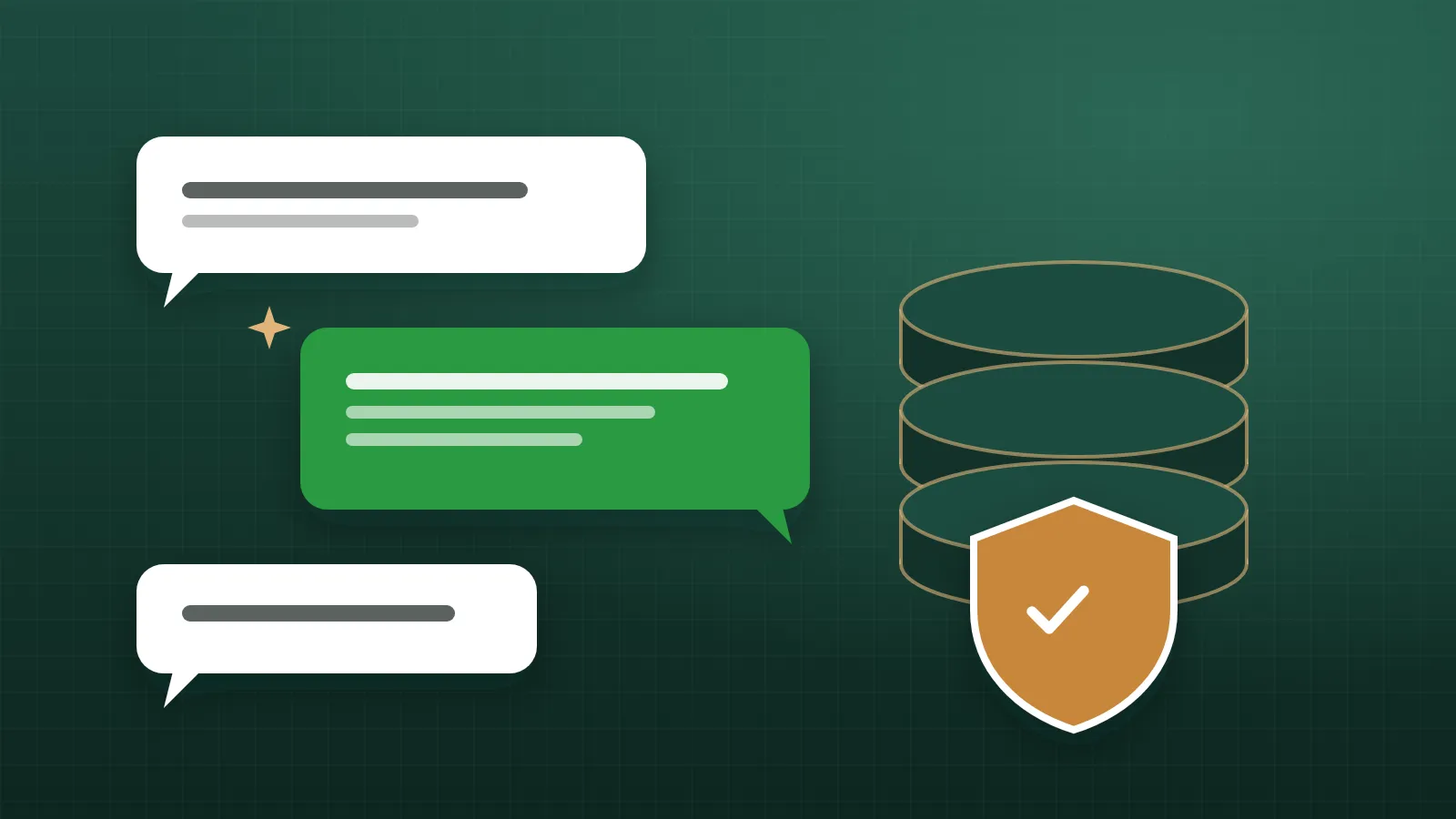
AI assistants have moved quickly from novelty to useful tool. Connected to a plant's systems, an assistant can answer "what ships this week?", list low-stock items, update a job's status, summarize yesterday's production or read a set of architect plans. That's genuinely helpful. It also raises fair questions: what can the assistant see, what can it change, and how do you know it got things right?
This article covers practical guidelines for using AI assistants with your plant data safely. It applies to any assistant, though we'll use Anthropic's Claude as the example because that's what Truss Plant Portal connects to.
Modern assistants connect to other systems through connectors. A connector is a defined set of actions the assistant can take, such as "list jobs", "get a job", "update inventory" or "read a plan page". The assistant decides which actions to use to answer your request, and the system it's connected to carries them out.
Two properties of a connection matter most for safety:
If a viewer connects an assistant, the assistant should only be able to read. If an editor connects it, it should be able to make the changes an editor can make, and no more. That way, connecting an assistant doesn't create a back door around your permissions.
This also means your permissions matter more than ever. Review who has admin and editor access (see Who should see what) before people start connecting assistants.
When an assistant changes something, the change should be recorded under the name of the person whose account it's using, just as if they'd made it in the app. That keeps your history meaningful and keeps responsibility clear: the person who asked the assistant to make a change is responsible for it.
AI assistants make mistakes. They can misread a document, misunderstand a request, pick the wrong job when two have similar names, or state something confidently that isn't true. Build review into how you use them:
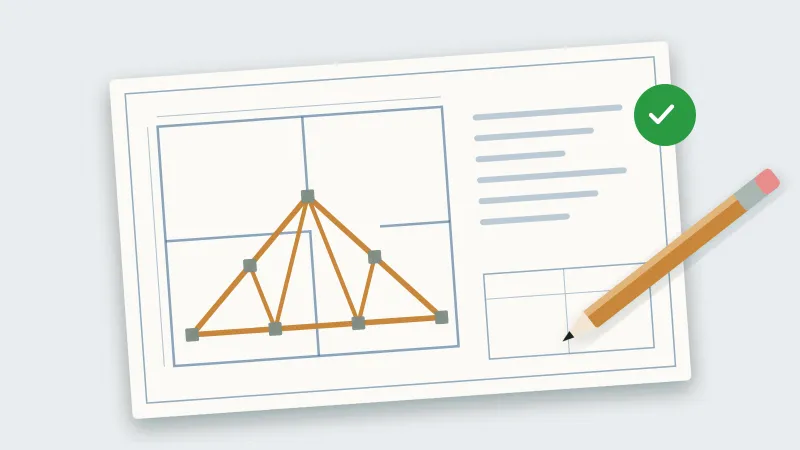
This is the most important rule. An assistant can read architect plans and draft truss designs, and that can save real time. But AI output is never an approved design. Every design, however it was prepared, must be reviewed by qualified designers and, where required, a licensed engineer before anything is built. The review workflow (versions, approve or request changes, comments) exists precisely so that AI-prepared designs go through the same checks as any other. See A plan intake and design review workflow.
Some actions deserve extra care, whoever performs them:
A sensible habit is to ask the assistant to confirm with you before any of these, and to reserve them for people (and their assistants) who are accountable for them.
When you connect an assistant, the information it reads to answer your requests is sent to the AI provider. Before connecting:
And remember that connecting is optional. If an assistant isn't connected, it can't see anything in your system.
Used well, assistants are particularly helpful for:
They're less suited to anything where a mistake is costly and hard to catch, unless a person reviews the result.
An AI assistant connected to your plant's data can save real time, as long as it works within your permissions, signs changes with your name, and its output is reviewed. Designs always get human and engineering review. Know where your data goes, be deliberate about sensitive actions, and keep the ability to disconnect at any time.
The Claude connector in Truss Plant Portal follows these principles: you sign in and press Allow, Claude acts with exactly your permissions, changes carry your name, and you can disconnect at any time.
Plans arrive by email, designs go out as attachments, and somebody builds from revision two when revision three exists. Here's a workflow that prevents it.
5 min read
Shared passwords and everyone-can-edit spreadsheets are convenient until something goes wrong. Here's a practical way to give each person the access their job needs.
4 min read
Software that works fine at a desk often fails on the shop floor. Here's what makes a tool usable for people with gloves, noise and no time to spare.
4 min read