Pick Lists and Why Deduct-on-Start Beats End-of-Month Counts
If stock only comes off the books at month end, your counts are wrong for the other 29 days. Deducting each pick list when the job starts fixes that.
5 min read
Inventory & pick lists
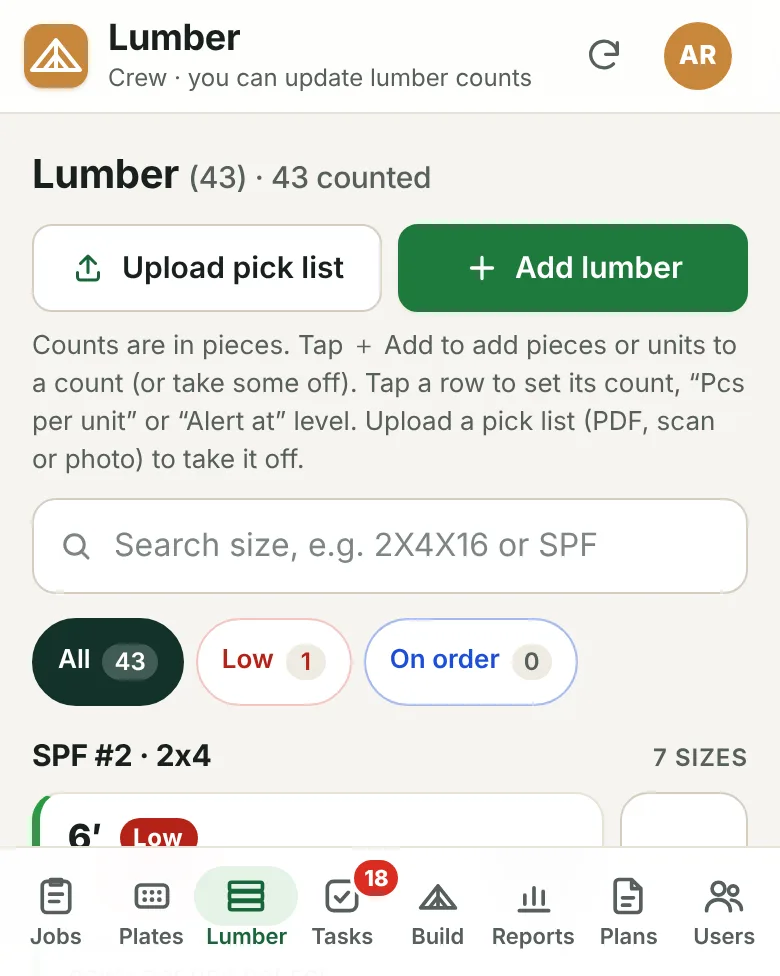
Keep plate and lumber counts with what each piece costs and see the value of what's on the floor. When a job starts, upload its pick list and every plate and board on it is deducted automatically.
What it does
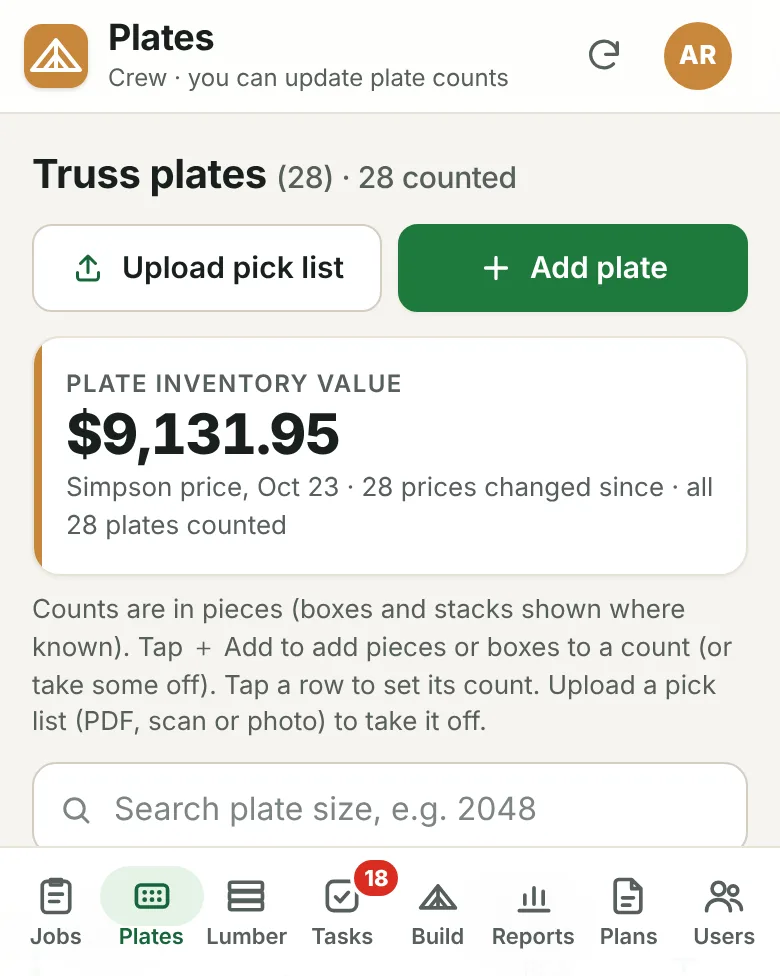
Every plate size and every lumber grade and length, with the count on hand and the cost per piece.
See the total value of the plates and lumber on the floor, worked out from your counts and costs.
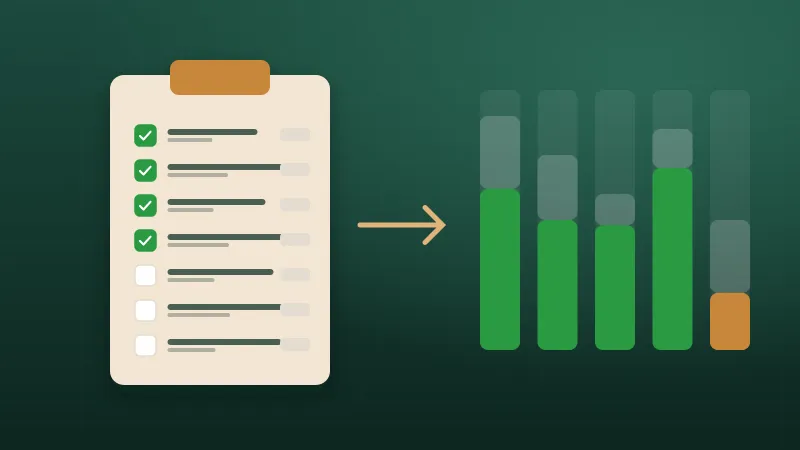
Upload the pick list as a PDF, a scan or a photo. The portal reads it and deducts every item on it.
Uploaded the wrong pick list, or the same one twice? Undo it and the stock goes back.
Set a low-stock level on the sizes that matter and the portal tells you when one drops below it.
Flag what's already been ordered so nobody orders it twice.
Day to day
Enter your plate and lumber items once, with counts and costs.
Set low-stock levels for the sizes you can't run out of.
Upload each job's pick list when it starts.
Watch the low-stock list, mark orders, and count to check now and then.
From the blog
If stock only comes off the books at month end, your counts are wrong for the other 29 days. Deducting each pick list when the job starts fixes that.
5 min read
Running out of a plate size in the middle of a batch stops a crew cold. Here's how to keep plate counts you can actually trust.
5 min read
Lumber is quoted per thousand board feet but used one piece at a time. Here's how to connect the two so you always know what your stock and your jobs really cost.
5 min read
Tell us about your plant and we'll show you the portal with the kind of work you build every day.